
Working out what’s connected where
A port description says “spare”, but the port is up. Or the label points to a cabinet that was rearranged a while ago. You need to work out what’s connected before anyone unplugs it, and the information in front of you doesn’t quite agree.
That can mean opening a session on one switch, checking its neighbours, looking up a MAC address and then doing much the same on the next switch. None of those checks is especially unusual. The nuisance is keeping the pieces together while you follow the path.
Follow the connection a step at a time
Start by confirming the switch and the exact interface. Check the description, VLAN or trunk settings and whether the port belongs to a port channel. Then look for a CDP or LLDP neighbour. If there is one, compare the local and remote port details rather than relying on the device name alone.
MAC address information can help when there’s no useful neighbour entry. Where ARP information is available, it may also help associate an address with an IP. Keep the device and VLAN context alongside those observations, otherwise it’s easy to join up entries that don’t belong together.
A learned MAC address doesn’t necessarily identify something plugged directly into that port. It might belong to equipment several switches away, or sit behind a phone, access point or hypervisor. A missing entry doesn’t prove a port is unused either. The equipment may be quiet, or the information may be incomplete.
Looking at the evidence together
OPIA collects interface, neighbour and endpoint information from supported Cisco IOS and IOS-XE devices, where the commands and permissions allow it. That can include interface descriptions, VLANs, port channels, CDP and LLDP neighbours, and MAC and ARP observations.
The topology view brings compatible observations together. You can select a device, link or endpoint and inspect the available details, rather than trying to hold several separate switch sessions in your head.
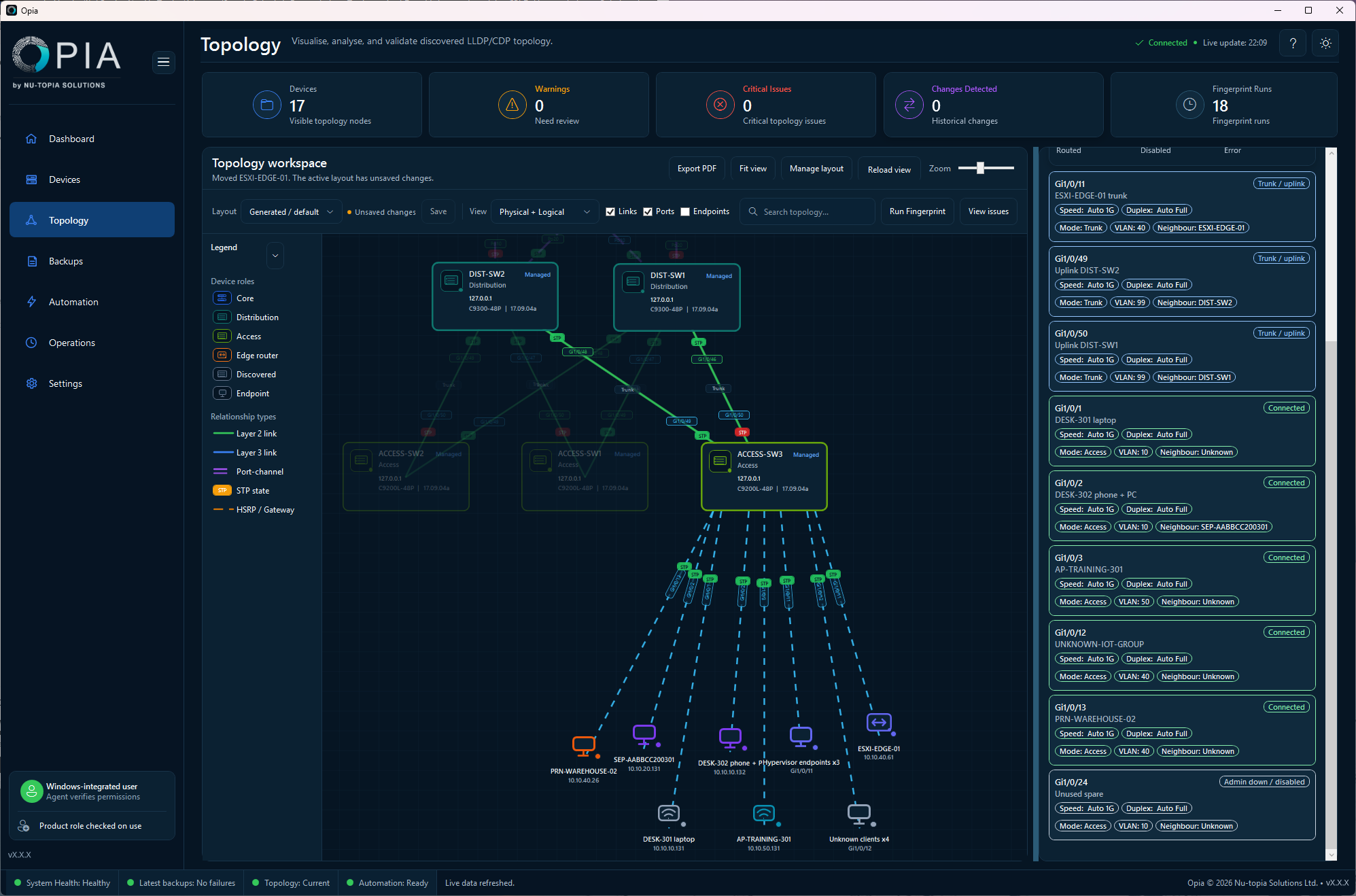
Some relationships come from observed neighbour information; others are inferred from the evidence available. OPIA distinguishes between them and shows confidence and evidence information for inferred links. That helps you decide what to check next, but an inferred endpoint association isn’t proof of a direct cable connection.
Before you pull the cable
Check when the relevant information was collected. If the network has changed since then, refresh the collections where appropriate and review any missing or failed commands. OPIA works from those snapshots, so it isn’t live packet tracing or continuous port monitoring.
When disconnecting the wrong thing would cause trouble, finish with the physical checks: patch records, cabinet labels and a conversation with whoever looks after the equipment. The collected information can narrow down the search; confirming the connection still matters.
The OPIA inventory documentation explains what can be collected, and the topology guide covers how those relationships are displayed.